Demo: a Christmas wreath workshop set up in Trenoxa Bookings
This is a demo, not a customer story: we set up a Christmas wreath workshop on our own test store to show every step a shop goes through in Trenoxa Bookings. The store, the class and the prices are examples.
What we set up: "Christmas Wreath Workshop", Saturday 5 December 2026 at 18:30, 10 places at $55. Total time in the app: about a minute.
Step 1: install the app
Install Trenoxa Bookings from the Shopify App Store. The Free plan covers one class, so a single workshop costs nothing to try.
Step 2: create the class
In the app, open New class. The form asks for five things: name, date, start time, seats and price per seat.
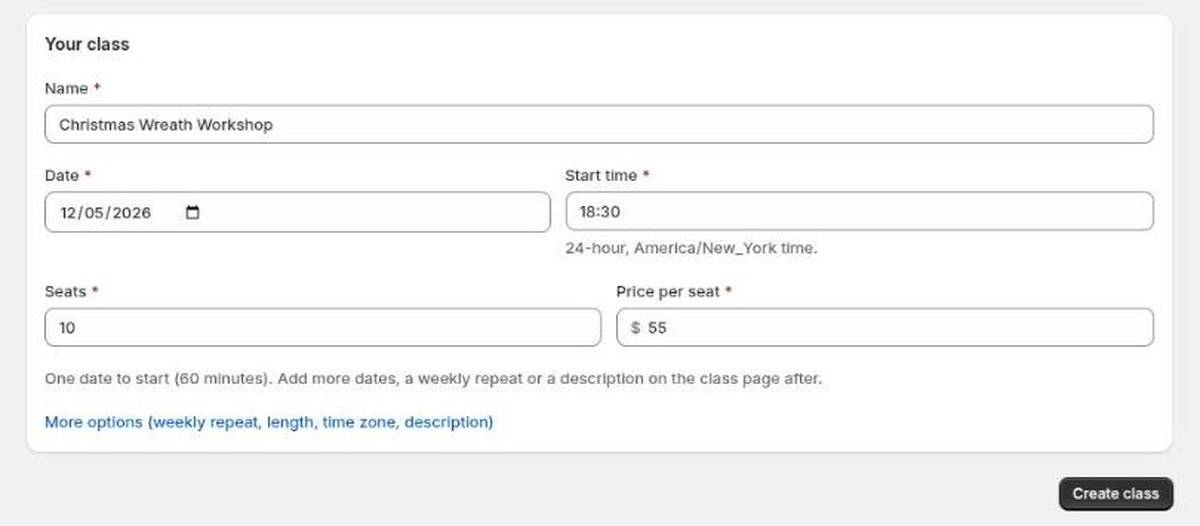
The start time is in your store's time zone, shown under the field. The session length defaults to 60 minutes; a wreath workshop runs longer, so open More options before saving to set 150 minutes (or add a description, a location note or a weekly repeat there).
Step 3: save
Click Create class. The app creates the class as a product in your Shopify store, with one session of 10 seats.
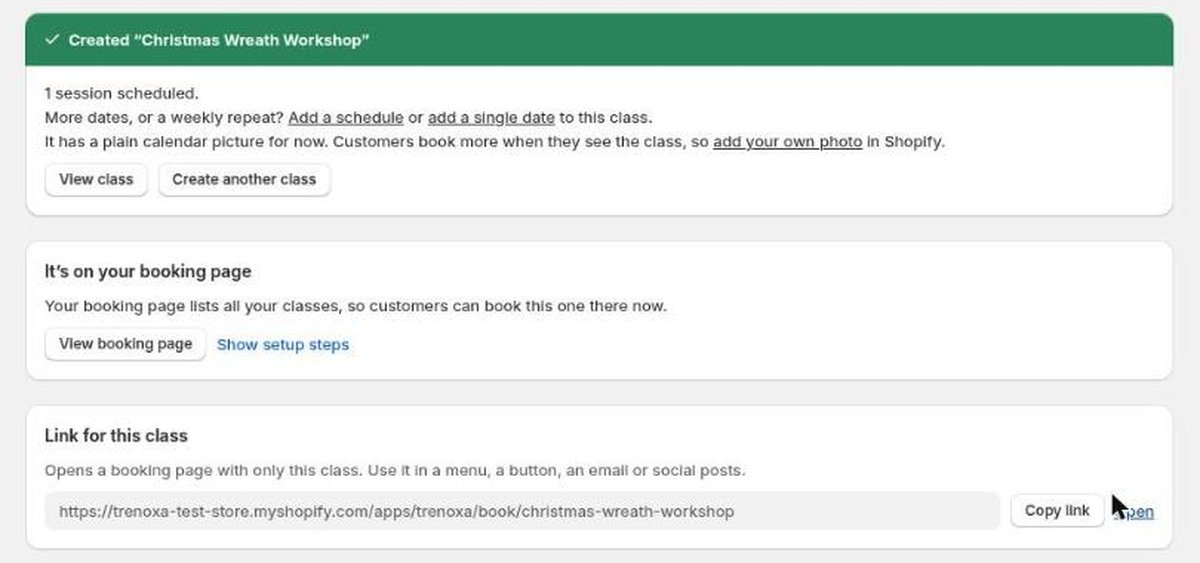
From here you can:
- Add more dates. "Add a single date" for another evening, or "Add a schedule" for every Saturday until Christmas. Each date gets its own seat count.
- Add your photo. The product starts with a plain calendar picture; a photo of finished wreaths sells far better.
- Share the link. "Link for this class" opens a booking page with only this workshop, for Instagram, a newsletter or a button on your homepage.
Step 4: show it in your theme
The first time, the app walks you through turning it on in your theme (Online Store → Themes → Customize → App embeds). After that, customers either pick a date on the class's product page or use your booking page, which lists every class.
Step 5: test a booking
Book one place yourself on your phone: pick the date, check out, and look at the order. The session's seat count drops from 10 to 9 and your name appears on its guest list in the app. Refund the test order and the seat goes back on sale.
What happens on the busy days
- Seats count down at checkout. A place is held while someone pays, so two people can't both buy the last one.
- A full date stops selling on its own, without you changing any stock.
- Past dates drop off the booking page after they've run.
- Every session keeps a guest list with names, seats and order links, so on the night you know who's coming.
Want it set up for you?
Send us your workshop dates and we set them up in your store, free. You check everything before it goes live. Planning the workshop itself? See How to run and sell a Christmas wreath workshop on Shopify.
Want your workshops set up for you?
Install Trenoxa Bookings and send us your dates. We set them up in your store for you, free, and you check them before anything goes live.
By class type: pottery · painting · cooking · craft workshops. Comparing apps? See what each booking app would cost for your classes.
More guides on this topic
- Workshop calendar 2027: dates and class ideas for every month
- How to run and sell a Christmas wreath workshop on Shopify
- Eventbrite or Shopify for your workshops?
- ClassBento vs Eventbrite vs your own Shopify store for classes (2026)
- From a paper sign-up sheet to online class bookings: what changes
- Best Shopify booking apps for classes and workshops (2026)
- Can you sell event tickets on Shopify? Classes, workshops and small events
- How to sell classes and workshops on Shopify without overbooking